


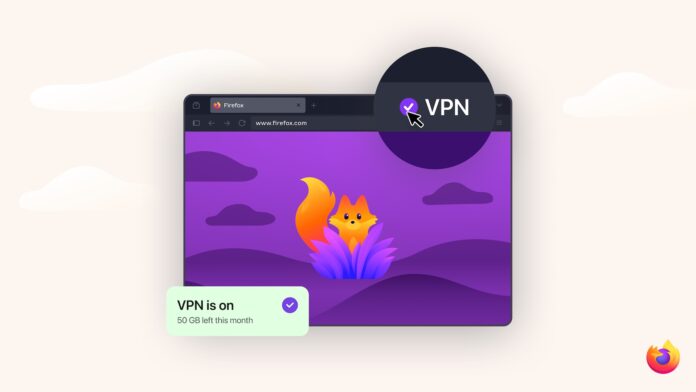

Digital privacy often feels like a full-time job, requiring users to juggle various extensions and subscriptions just to keep their personal data from leaking across the web. Firefox is aiming to change that narrative with the release of version 149. By introducing a free built-in VPN and a native Split View mode, Mozilla is positioning the browser not just as a tool for accessing the web, but as a secure, high-performance workspace that respects user boundaries.
The New Standard for IP Protection
At the heart of this update is the built-in VPN, a feature designed to address the reality of modern tracking. Every time a user visits a site, their IP address acts as a digital breadcrumb, allowing companies to approximate their location and stitch together a profile of their habits. Firefox now counters this by offering 50 gigabytes of free VPN data every month, a generous allowance that covers typical high-stakes activities like online banking, shopping, and sensitive research.
This service functions by routing browser traffic through a secure proxy network. By the time the data reaches a website, the user’s personal IP address has been replaced with one from the proxy. While Firefox already protects data with standard encryption, this added layer of anonymity is particularly vital for those who frequently work from coffee shops, hotels, or other public Wi-Fi environments where network traffic is often vulnerable to local snooping.
How to Activate Protection in Firefox
Setting up the built-in VPN is designed to be a friction-free experience, requiring no external software or complex configurations.
- Check the Version: Ensure the browser is updated to Firefox 149 or higher.
- Locate the Shield: Look for the new IP Protection or VPN icon located in the toolbar to the right of the address bar.
- Sign In: Users will need to sign in with a Mozilla account to activate the service and track their 50 GB monthly allowance.
- Toggle to Protect: Click the icon and switch the protection to the “On” position. The icon will change color to indicate that traffic is now being masked.
The interface is intuitive, providing a clear readout of how much data remains in the current cycle. If the 50 GB limit is reached, Firefox pauses the service and prompts the user for confirmation before continuing with an unmasked connection, ensuring there are no surprises regarding their privacy status.
Native Multitasking with Split View
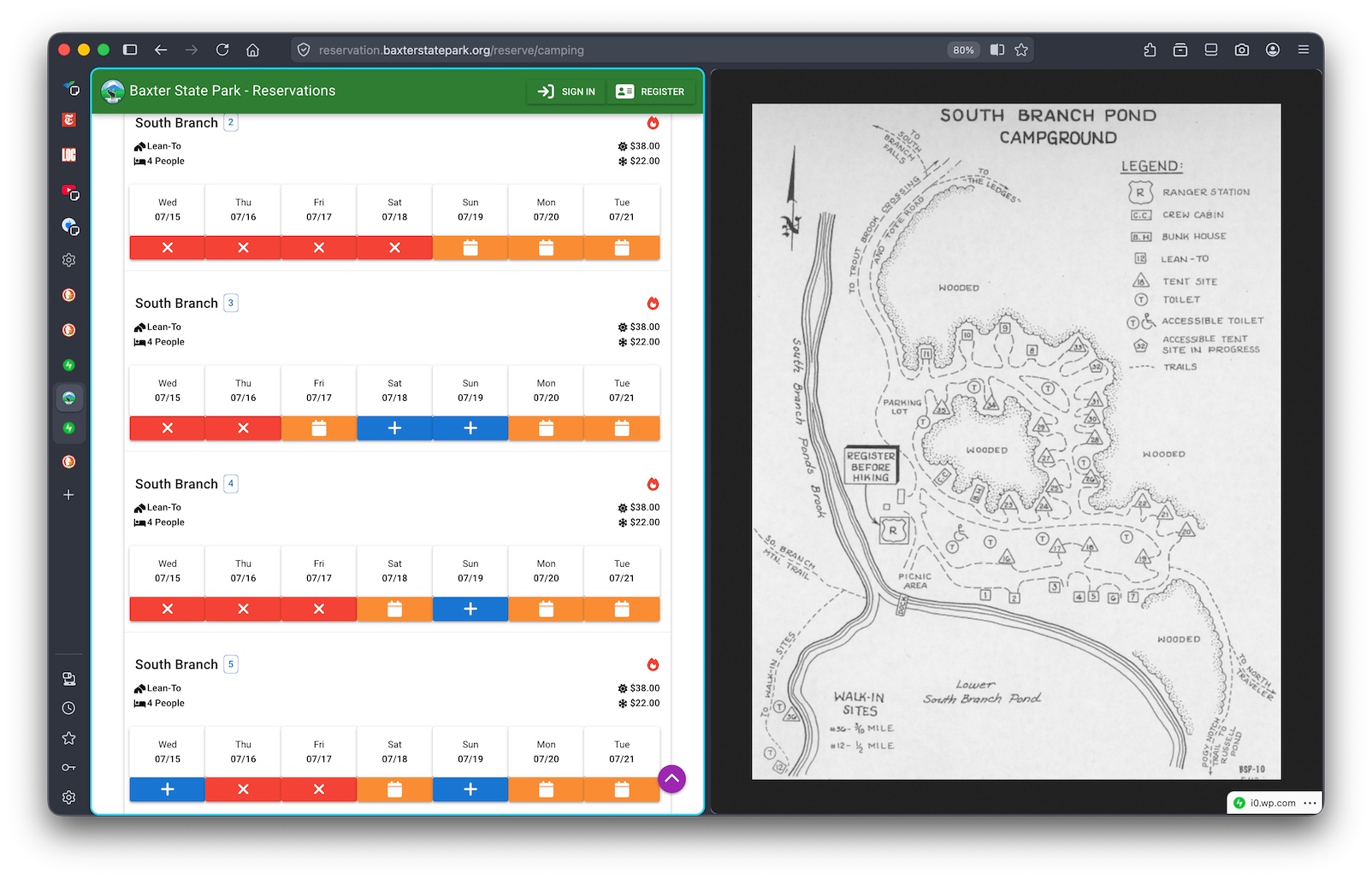
Beyond security, Firefox 149 introduces Split View, a productivity feature that allows users to tile two active tabs side-by-side within a single window. This eliminates the need for constant tab-switching or manual window resizing, making it significantly easier to compare products, reference documents while writing, or watch a video while browsing.
To use this feature, a user simply right-clicks an open tab and selects the option to add it to a split view. The interface provides a clear blue highlight around the active pane, and a dedicated menu allows for easy swapping or closing of the paired tabs. It is a thoughtful addition that acknowledges how people actually use the web today: rarely looking at just one thing at a time.
A Different Approach to Privacy
The tech industry has a complicated history with “free” VPNs, many of which sustain themselves by selling user browsing data or injecting intrusive advertisements. Mozilla is taking a different path by leveraging its reputation for transparency. This built-in tool does not log browsing history or sell data to third parties. Instead, it serves as a robust entry point for privacy-conscious users, while those requiring unlimited data and full-device protection across all apps can still opt for the premium Mozilla VPN subscription.
Looking Ahead
Currently rolling out in beta to users in the United States, United Kingdom, Germany, and France, this update represents a broader shift in how browsers are expected to function. By integrating these tools directly into the core experience, Firefox is making high-level privacy and advanced multitasking accessible to everyone, not just the tech-literate power users. As the rollout continues to other regions, it sets a new benchmark for what a modern, respectful browsing experience should look like.
Frequently Asked Questions: Firefox Built-in VPN
To help users navigate this new privacy feature, here is a list of common questions and answers regarding the rollout:
1. Is the Firefox built-in VPN actually free? Yes. Firefox offers 50 GB of data per month at no cost. There are no hidden fees, and unlike many other free services, Mozilla does not sell your browsing data or inject advertisements into your traffic to fund the service.
2. How do I know if I have access to the VPN? The feature is currently in beta for users in the US, UK, Germany, and France starting with Firefox version 149. If you are in one of these regions, look for the “IP Protection” or VPN icon in your toolbar or under the Firefox main menu (the three horizontal lines).
3. What happens if I use all 50 GB of data? Once you hit the monthly limit, the VPN protection will pause. Firefox will notify you and ask for your confirmation before you continue browsing without the mask, ensuring you don’t accidentally expose your IP address.
4. Does this protect my whole computer? No. The built-in VPN is browser-level protection. It only masks the traffic inside your Firefox tabs. If you use other apps (like Spotify, Zoom, or a different browser), that traffic will still show your real IP address. For full-device protection, Mozilla offers a paid standalone VPN subscription.
5. Does the VPN slow down my internet speed? Because your traffic is being routed through a secure proxy server, you might notice a very slight change in speed. However, Mozilla has optimized the network to ensure everyday activities like streaming, shopping, and banking remains fast and responsive.
6. Can I choose which country my IP address shows? The free version is designed for IP protection rather than “location hopping.” It automatically selects the best proxy server to mask your identity while maintaining a stable connection. Manual location switching is typically a feature reserved for the full Mozilla VPN subscription.
Discover more from SNAP TASTE
Subscribe to get the latest posts sent to your email.